Yudit HOWTO
HOWTO Document List
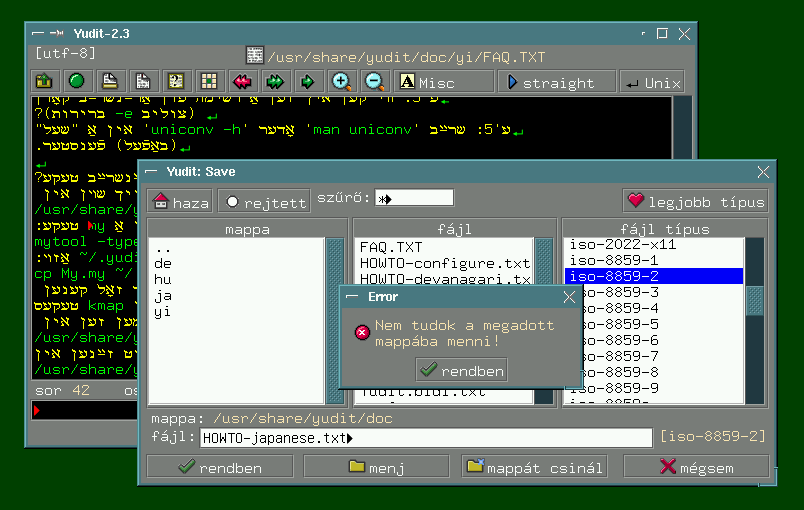
You can see the howto documents in Yudit unicode editor if you type 'howto configure' in the command area of the editor window.
For your reference, I put the following documents on this server:
arabic, baybayin, berber, bidi, build, configure, devanagari, freehand, georgian, greekancient, japanese, keymap, malayalam, rovasiras, syntax, tamil, tibetan, vietnamese, windows
HOWTO configure
Yudit: HOWTO-configure.txt
=====================================================================
Version: 3.1.0
Author:  Gaspar Sinai <gaspar (at) yudit.org>
Date:    Tokyo 2023-02-05

This document describes how to configure Yudit.
=====================================================================
1 Configuration File Loading

 Yudit has a default configuration that is compiled into the
 binary. When it starts it tries to merge entries from the
 system configuration properties into its configuration:

  /usr/share/yudit/config/yudit-properties

 After that the following directories are created unless they exist:

   ~/.yudit
   ~/.yudit/fonts
   ~/.yudit/data
   ~/.yudit/syntax

 ~/ is the user's home directory $HOME, like '/home/gsinai/'.

 Yudit tries to load

   ~/.yudit/yudit.properties

 The properties in this file will override the previously
 loaded configuration properties.

 When yudit exists, it will merge certain configuration properties
 with the ones that the user can change inside Yudit. Currently
 these are the properties that will be overwritten:

  yudit.default.geometry
  yudit.editor.font
  yudit.editor.fontsize
  yudit.editor.input
  yudit.editor.syntax

 The merged properties will be written back into ~/.yudit/yudit.properties
 or a new file created if this file does not exist.

=====================================================================
2 Configuration File Format

 The configuration file is a plain text file. It consists of lines of
 key=value pairs, like

  hierarchical.key.string=value

 or key=list pair, like:

  hierarchical.key.string=value1,value2,value3

 It is important to know that space characters are not ignored,
 they should be avoided where there is no space.

 It is possible to use the '\<newline>' character to join two
 separate lines  but those will be joined again when yudit writes back
~/.yudit/yudit.properties.

=====================================================================
3 Basic Configuration Parameters

3.1 yudit.scale

 GUI scaling factor of yudit. Valid values are decimal numbers in
 the range of 1.0 and 3.0. The whole user interface including fonts
 and icons will be up-scaled by this factor. Thus is useful on
 high-resolution monitors where pixels are small.

 Example:
 yudit.scale=1.5
---------------------------------------------------------------------
3.2 yudit.datapath

 This is the path yudit uses to locate its compiled .my files
 that contain keyboard input maps and converters.

 This parameter is a list. Example:

 yudit.datapath=/home/gsinai/test/data,/home/gsinai/test/data.

 From yudit 3.0.8 it is safe to leave this list empty. Yudit will
 first try ~/.yudit/data then yudit.datapath, and after that the
 system /usr/share/yudit/data directory to locate these files.

 Yudit comes with a program called uniconv that can be used to
 check the full datapath in yudit-3.0.8 and above:

 uniconv -h
---------------------------------------------------------------------
3.3 yudit.fontpath

 This is the path yudit uses to locate the font files. The path
 elements here can end with /** to indicate that yudit should search
 multi-level sub-directories also. There is a special prefix
 ~/ that specifies the home directory of the current user.

 This is a list. Example:

  yudit.fontpath=/usr/share/fonts/**,~/.local/share/font/**

 Yudit first searches for fonts in ~/.yudit/fonts, then this
 yudit.fontpath list and if the font is still not found it searches
 /usr/share/yudit/fonts.

 Yudit is bundled with a program uniprint, that can be used to
 examine the full fontpath (from yudit-3.0.8):

 uniprint -h
---------------------------------------------------------------------
3.4 yudit.syntaxpath

 This is the path yudit uses to locate the external spell-checker
 files. It is also used to locate the external encryption
 add-on library.

 Yudit expects the following files on this path:
 libhunspell.so / libhunspell.dylib / libhunspell.dll - hunspell library
 libsedy.so / libsedy.dylib / libsedy.dll - sedy encrytpion library
 .aff and .dic files for Hunspell.

 Please refer to the following URLs:
 - hunspell spell checker:
     https://github.com/hunspell/hunspell

 - hunspell aff and dic files:
     git://anongit.freedesktop.org/libreoffice/dictionaries
     https://cgit.freedesktop.org/libreoffice/dictionaries

 - Interface that a libsedy.so/libsedy.dylib/libsedy.dll
   should implement to encrypt/decrypt text files
   that have extension .sedy:
     https://yudit.org/download/yudit_sedy.h
   This header file is also available in yudit source distribution.

 Example:
 yudit.syntaxpath=/usr/share/hunspell

 From yudit 3.0.8 it is safe to leave this list empty. Yudit will
 first try ~/.yudit/syntax then yudit.syntaxpath, and after that the
 system /usr/share/yudit/syntax directory to locate these files.

 One way to get hunspell into ~/.yudit/syntax on Ubuntu:
 - Install hunspell:
   sudo apt install hunspell
 - Check where the shared library is
   ldd /usr/bin/hunspell
 - Make a symbolic link of it to ~/.yudit/syntax/libhunspell.so
   ln -s /lib/x86_64-linux-gnu/libhunspell-1.7.so.0 ~/.yudit/syntax/libhunspell.so
 - If yudit.syntaxpath=/usr/share/hunspell there is nothing else to do.
 - You can install more dictionaries like this:
   sudo apt-get install hunspell-hu

---------------------------------------------------------------------
3.5 yudit.fonts, yudit.editor.fonts

 List parameter, that defines the available fonts.
 yudit.editor.fonts defines the available fonts that can be selected
 from Yudit in the editor window. The available fonts in other parts of
 the gui (labels, buttons) are a super-set of the two.

 Example:
  yudit.editor.fonts=default,TrueType,Bitmap
  yudit.fonts=buttonfont,labelfont

 When the configuration in this example is used, the following virtual
 fonts will be available in yudit.

 Shift-F1 - default
 Shift-F2 - TrueType
 Shift-F3 - Bitmap

 Any name can be used. The name "None" or "none" are special. They
 mean that no font change is desirable even though the corresponding
 Shift-Fxx combination was pressed.

 These virtual fonts must be defined in yudit.properties with:

  yudit.font.<fontname>

 It is described later.

---------------------------------------------------------------------
3.6 yudit.font.<fontname>

 A list of fonts that build a virtual font.

 The virtual font name "default" is defined internally. It is not
 desirable to have yudit.font.default in the configuration file.

 The default font has unifont.hex in the first line.
 So it you drop unifont.hex into ~/.yudit/fonts you can edit files
 immediately with font size 16 (yudit.scale=1.0).

 The font name should be a TrueType/OpenType/CFF/bdf,unifont-hex
 font filename with attributes or logical X11 fonts.

 X11 native fonts are using logical font names instead of font
 filenames. Yudit has built-in converters for most of the standard X11
 font encodings.(source swindow/sx11/SX11Font.cpp)
  *-iso10646-1
  *-iso10646p2-<1-16>
  *-iso8859-<1-9>
  *-koi8-1
  *-koi8-r
  *-ksc5601*
  *-jisx0208*
  *-jisx0201*
  *-jisx0212*-0
  *-big5*
  *-gb2312*
  *-iso646*

 When font files are used, attributes can be added. Their order
 of attributes is important.

 FontFile:attribute1
 FontFile:attribute1:attribute2

 Possible values for attribute1

 unicode: to designate full Unicode range.
 encoding: If the font is not a Unicode font, and if there exists a
    <encoding>.my yudit map it can be assigned with this attribute.
 scriptcode:
     indic: U+0900..U+0FFF
     deva:  U+0900..U+097F
     beng:  U+0980..U+09FF
     guru:  U+0A00..U+0A7F
     gujr:  U+0A80..U+0AFF
     orya:  U+0B00..U+0B7F
     taml:  U+0B80..U+0BFF
     telu:  U+0C00..U+0C7F
     knda:  U+0C80..U+0CFF
     mlym:  U+0D00..U+0D7F
     sinh:  U+0D80..U+0DFF
     thai:  U+0E00..U+0E7F
     lao:   U+0E80..U+0EFF
     tibt:  U+0F00..U+0FFF
     jamo:  U+1100..U+11FF
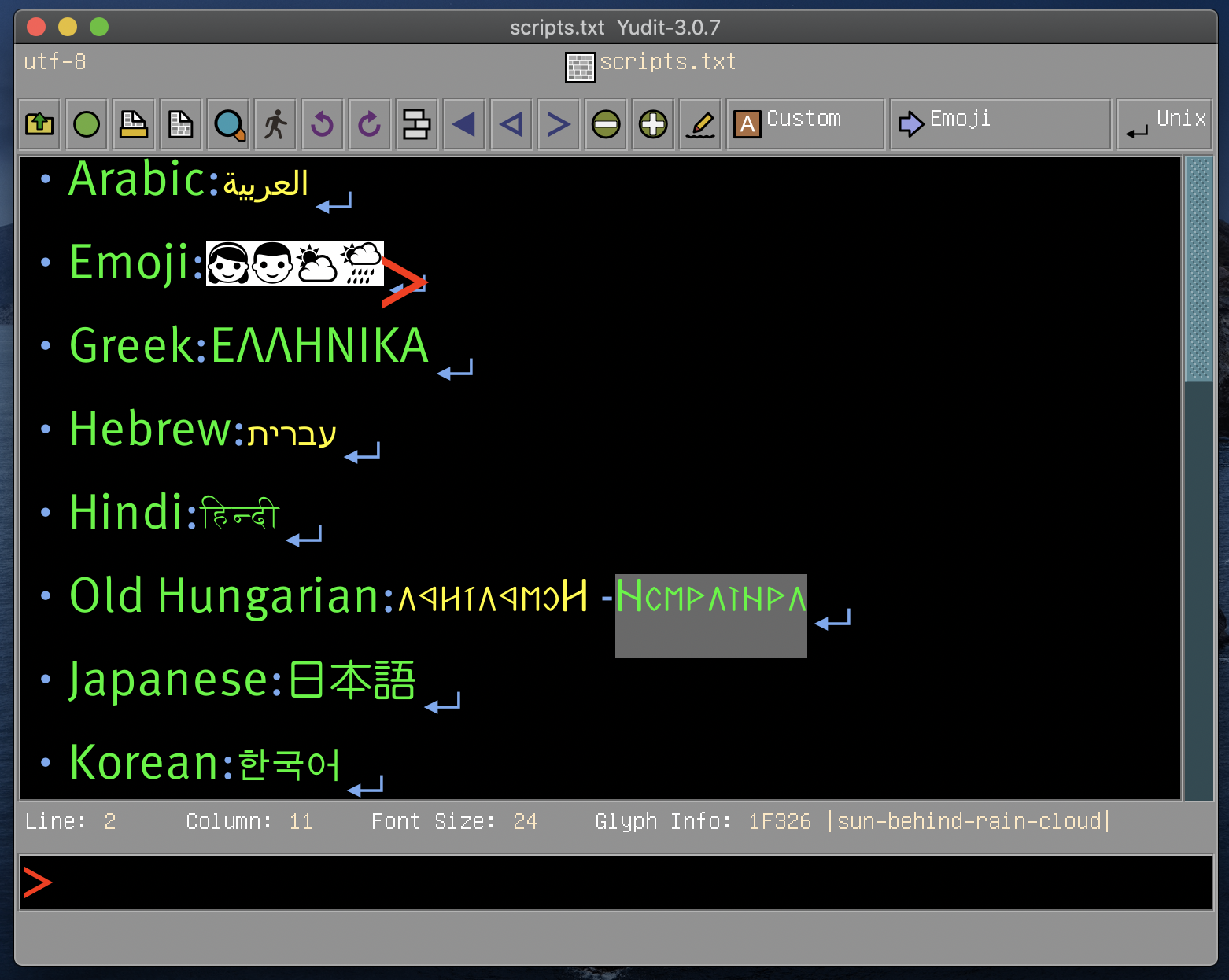
 emoji: Paint the font with white background and black foreground
     and exclude characters under U+2122.

 Possible values for attribute2

 RL - Strictly Right-To-Left font
 LR - Strictly Left-To-Right font
 RL and LR values are important for PUA area and OldItalic to
 make software Glyph mirroring work properly when direction is changed.


 Example:

 yudit.editor.fonts=default,Terminal,Indic
 yudit.font.Terminal=JetBrainsMono-Medium.ttf,ipag.ttf,\
EmojiOne_Color.otf:emoji,OldHungarian_Full.ttf:unicode:RL
 yudit.font.Indic=raghu.ttf:deva,MalOtf.ttf:mlym

 Yudit is bundled with:
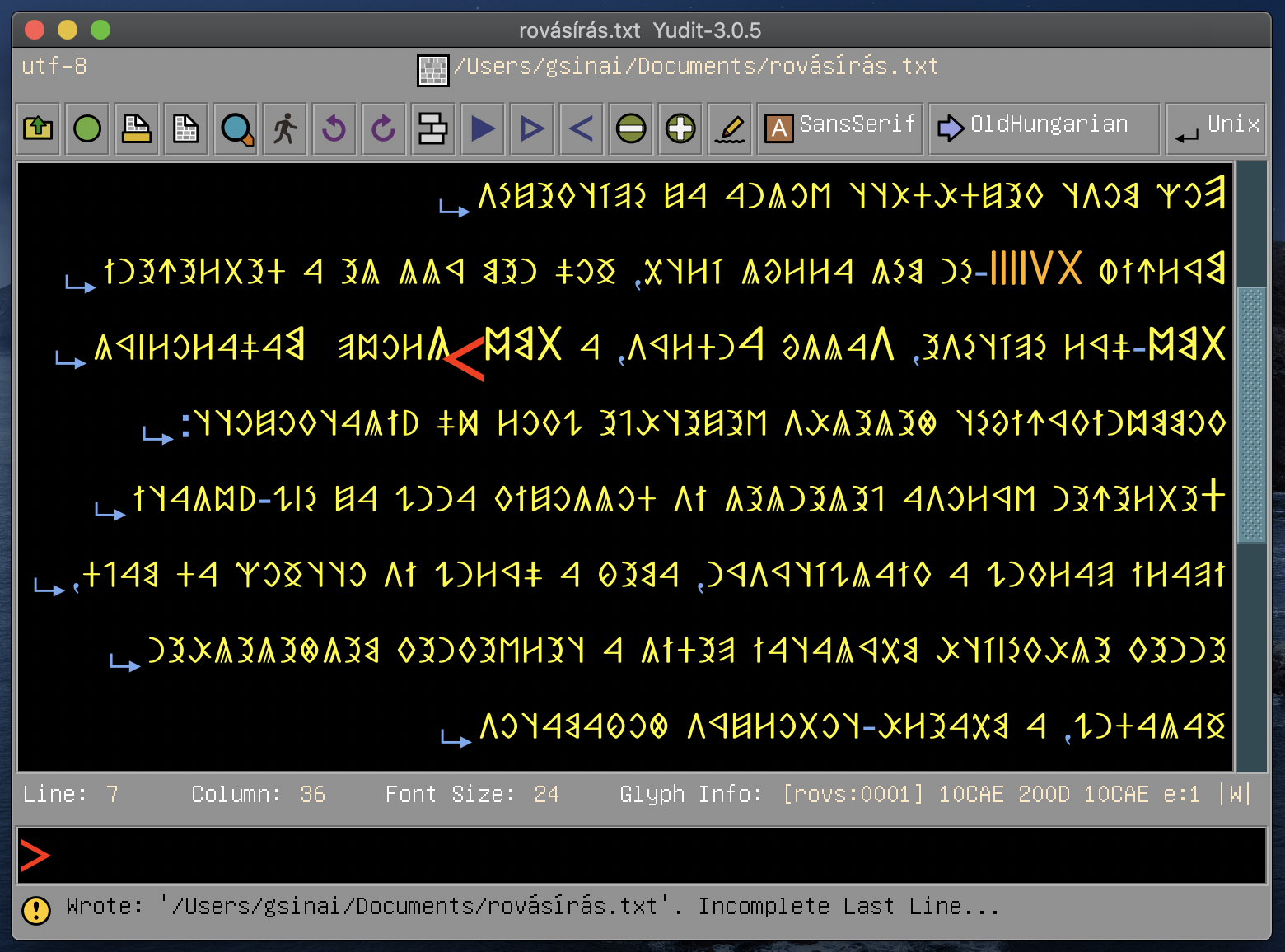
  - OldHungarian_Full.ttf: RL Rorvasiras in PUA are,
     RL Unicode standard Old Hungarian glyphs with ligatures.
  - arabforms.hex: size 16 bitmap font for Arabic shapes
  - syriacforms.hex: size 16 bitmap font for Syriac shapes
  - yudit.ttf: A small last resort true type font
  - yudit.hex: A small size 16 last resort bitmap font.

 From yudit-3.0.8 it is possible to examine which font files
 are used by yudit. A command line tool, uniprint that is
 bundled with yudit can be used for this purpose.

 uniprint -font TrueType -h
 uniprint -h
=====================================================================
4 Editor Configuration Parameters

These configuration parameters configure the Editing Area.

---------------------------------------------------------------------
4.1 yudit.editor.fonts
 This property was also described in yudit.editor.fonts section.

 This list defines the font choices in the Editor. These can be
 selected wtih Shift-F1..F12 keys. The fonts are the virtual fonts
 that are defined with yudit.font.<virtualfont> configuration.

 Example:
  yudit.editor.fonts=default,TrueType,Serif,SansSerif,Terminal

 This configuration will assign the following key-switches:
 Shift-F1=default, Shifty-F2=TrueType...

---------------------------------------------------------------------
4.2 yudit.editor.fontsizes

 A list of font sizes that can be selected in the GUI with +/- buttons.
 This is different from yudit.editor.fontsize which is the fontsize
 that was saved when yudit exited.

 Example:
  yudit.editor.fontsizes=12,14,16,18,24,48

 As X11 font sizes will be defined as integers, do not use
 floating point values here. This value will replace the font size
 in XLFD for X11 fonts. Scalable fonts will be scaled to 72dpi by
 default.

---------------------------------------------------------------------
4.3 yudit.editor.inputs

 A list that defines the the input methods that can be selected via
 F-keys.

 These inputs are based upon a .my file  on yudit.datapath (3.2).

 Please note the the kmap files in /usr/yudit/src are installed
 for reference only.  They can only be used after being converted
 into .my format and properly put in a directory on yudit.datapath.

 config example:
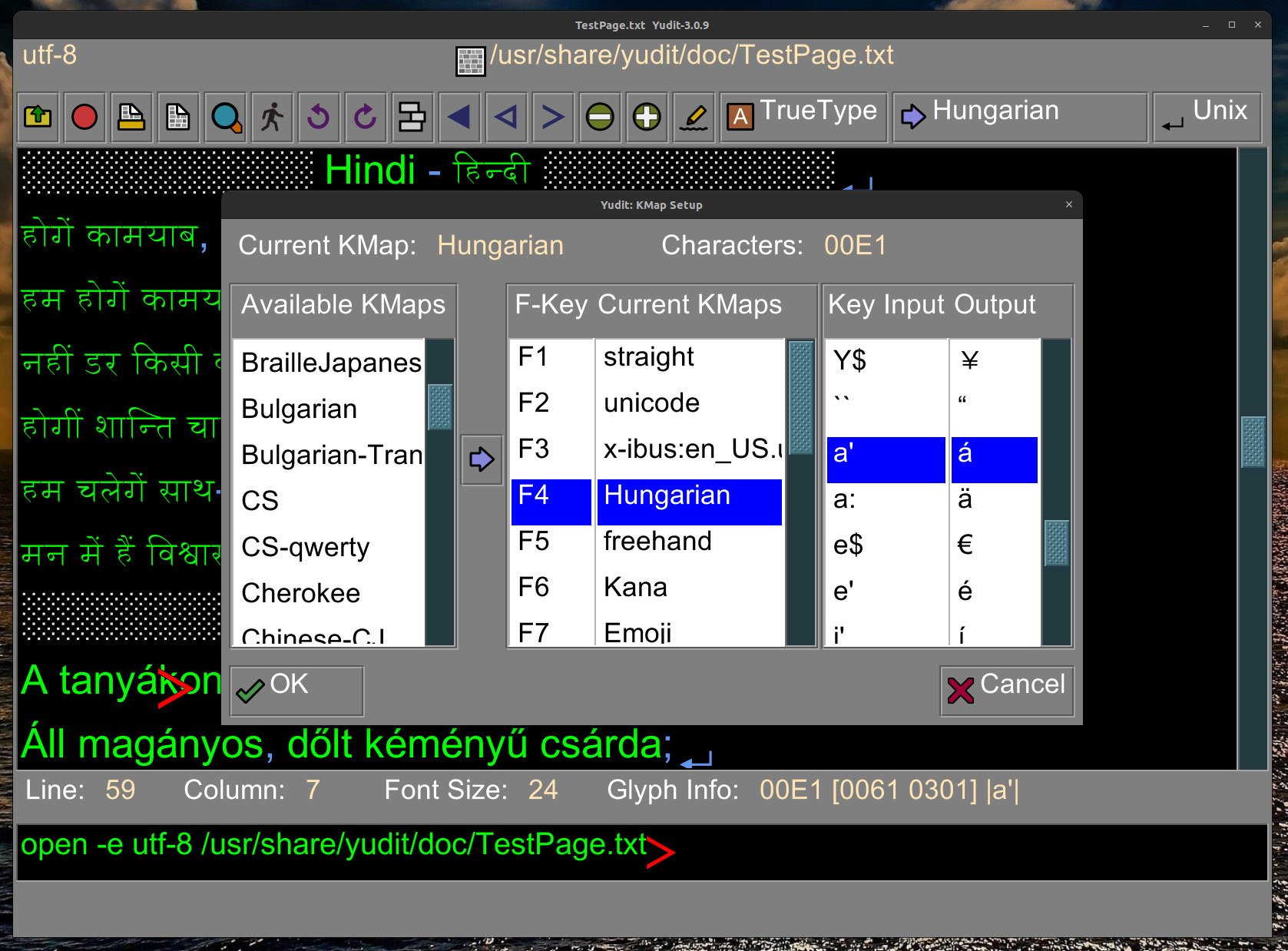
  yudit.editor.inputs=straight,unicode,x-ibus:en_US.utf-8,None,Hungarian,freehand

 This will load:
 F1 straight: built-in - no mapping
 F2 unicode: built-in - \uxxxx escapes
 F3 x-ibus:en_US.utf-8: built-in - ibus input system
 F4 None: nothing will happen when pressing F4
 F5 Hungarian: external Hungarian.my file is searched and
  possibly found in /usr/share/yudit/data/Hungarian.my
 F6 freehand: internal, handwriting engine with external handwriting
  description files.

 If you want to create you own .my keyboard input file, you should
 read the /usr/share/yudit/doc/keymap-format.txt
 file, and consult the man page for the mytool program.

 Keymap source files can be added with kmap extension, and mys extension.
 Both will be compiled into .my yudit data file.

 Original kmap files can only be used in BMP. If there is a need to create
 keymaps for the full Unicode range, including SMP areas.  mys files should
 be created.

 A reference mys file to input Old Hungarian in SMP can be found in the yudit
 distribution:  mytoo/mys/OldHungarian.mys

 All compiled my files can be used as external text converters,
 uniconv -h will list the ones it can find on the datapath.

 Users can also create their own freehand recognition file. Please read
 /usr/share/yudit/doc/README-FREEHAND for details.

---------------------------------------------------------------------
4.3 yudit.editor.xinputs

 A list of x input methods in the form of

   name:locale

 where :locale is optional. The input will appear in the toolbar
 as x-name.

 Example: x-ibus:en_US.utf-8,interxim,kinput2:ja_JP.eucJP,\
xcin:zh_TW.big5,Ami:ko_KR

 x-ibus:en_US.utf-8 is the X11 input used in Ubuntu by Mozc (Japanese).

 Special method:

 utf-8 - this will pass all X11 strings as is - if Unicode
         utf-8 is supported by X11. If you specify the locale,
         like 'utf-8:hu_HU' then locale is set before switching
         to this mode, allowing for X11 style composition of
         characters.

 You should note that if locale has encoding in the form of:

    language_VARIANT.codepage

 Yudit's own string converter will be used for encoding.
 Some aliasing also takes place:

 eucjp -> euc-jp; euckr -> euc-kr; big5 -> big-5;

 In an effort to eliminated gb-2312 the following compatible aliases
 are also used:

 gb2312 -> gb-18030; gb-2312 -> gb-18030; gb18030 -> gb-18030

 Of course you can omit encoding altogether: ko_KR means use utf-8
 look-ups.

 Note that the conversion starts and ends with <Shift><SAPCE>.

 Start kinput2 with canna: kinput2 -canna &
 Start Ami: export LC_ALL=ko_KR; ami
 Start xcin (big5 mode): export LC_ALL=zh_TW.big5; xcin
 Start xcin (gb2312 mode): export LC_ALL=zh_CN.GB2312; xcin

 Please not that kinput2 may have a configuration file in your home
 directory: called '.canna'. In that I recommend you comment this:
 ;;(global-set-key "\F1" 'extend-mode)
 otherwise funny things may happen when you press F1.

 ibus:en_US.utf-8 XInput is the one that comes with Latest Ubuntu that
 ueses Mozc for Japanese input.
---------------------------------------------------------------------
4.4 yudit.editor.xinputs.style

  String. Set the input method input style to one of the following
  values:
  preedit-root-status-root - input method is goung to open a
        separate window.
  preedit-over-status-over - input method is going to write at the cursor
  preedit-under-status-under - input method is going to write
     at the bottom of the main text window.
  preedit-over-status-under - input method is going to show the status
    at the bottom of the main text window but  preediting is
    at the cursor.
  The default value is 'preedit-over-status-over'.

---------------------------------------------------------------------
4.5 yudit.editor.filetypes

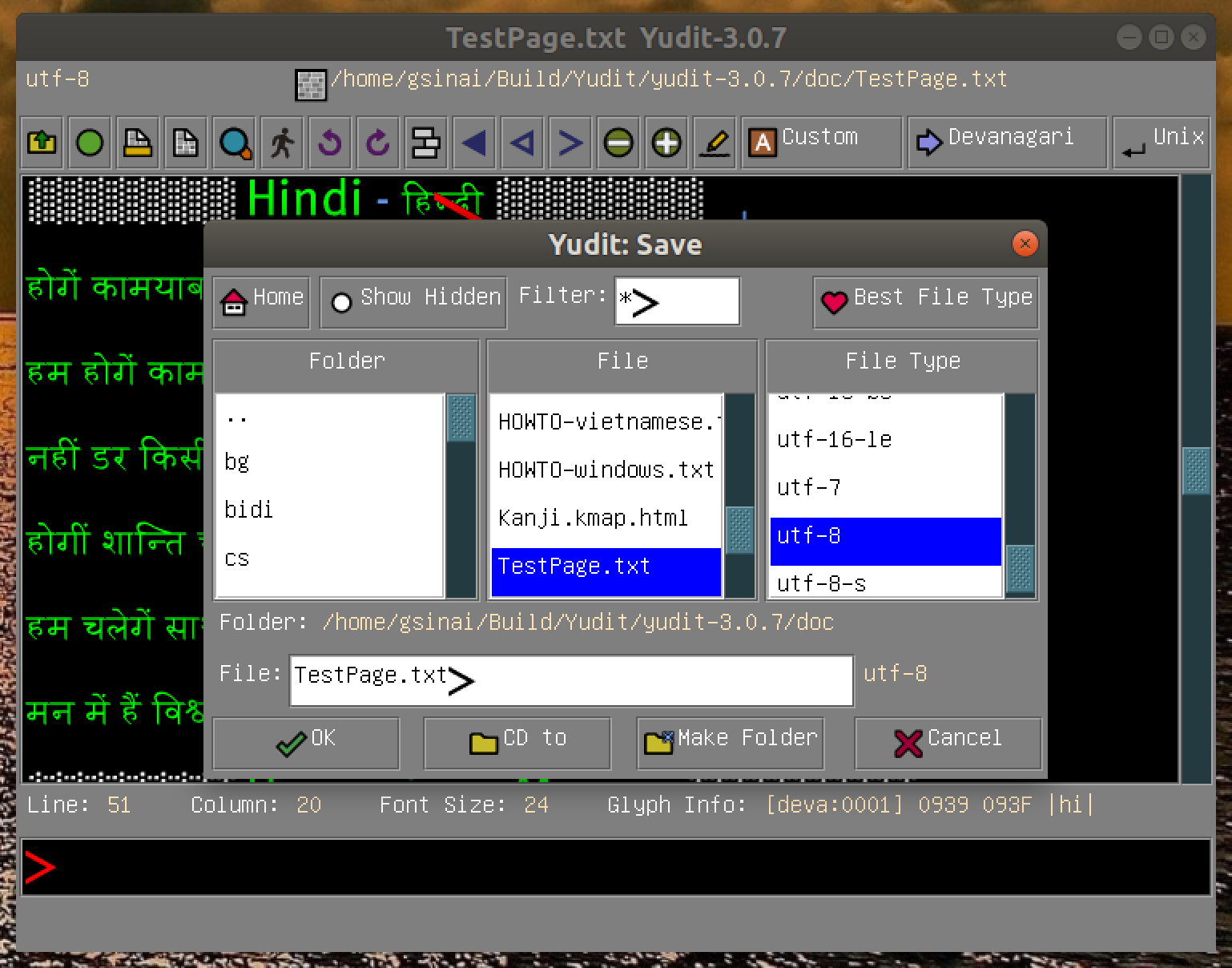
 This list will be appended to the original list of file types in
 the File Dialog. Normally File Dialog would show the built-in types
 only. This is also known as encoding (3.6)
 Example:
  yudit.editor.filetypes=Hungarian,Hangul
 This means the Hungarian and Hangul can be used as transliteration
 text converters in the file open and save dialog.

=====================================================================
5. Default Configuration Parameters

These parameters set some initial values.

---------------------------------------------------------------------
5.1 yudit.default.filetype

 String. It defines the encoding used initially when invoking Yudit.
 To get a full list of supported encodings uses uniconv, which is
 a command line tool bundled with yudit:

  uniconv -h

 This is also known as best File Type in the file dialog window.

 Example:
 yudit.default.filetype=utf-8

 Don't touch this. utf-8 is the best Unicode encoding for plain text.
---------------------------------------------------------------------
5.2 yudit.default.printer.options

 String. It defines the options that is passed to the 'lpr' command
 when printing.
 Example:
  yudit.default.printer.options=-P PrinterName

---------------------------------------------------------------------
5.3 yudit.default.preview.command

 String. It defines the command used when the preview button is
 pressed. This is a full unix command that will be executed by
  /bin/sh -c 'whatever you configured'
 and the postscript output will be piped into this command.
 Examples:
  yudit.default.preview.command=evince
  yudit.default.preview.command=open -W -a skim
  yudit.default.preview.command=C:/Program Files/Ghostgum/gsview/gsview32.exe

---------------------------------------------------------------------
5.4 yudit.default.clipboard.encoding

 This is the clipboard encoder to cut and paste in X11 if the requested
 text type is COMPOUND_TEXT. COMPOUND_TEXT could be decoded with yudit
 if there were an universal decoder. Encoding on the other hand, has
 some ambiguity as there are characters that occupy the same Unicode
 character but they are distinct in COMPOUND_TEXT. For this, reason,
 and because yudit does not have a universal decoder, we need to
 explicitly set this encoder. Try to use some iso-2022-x11 for Japanese
 XWindow or ksc-5601-x11 for Korean XWindow.

5.5 yudit.default.geometry

 This specifies the initial size of the editor window. The default
 value is "780x480". That is 780 pixels wide 480 pixels high.

=====================================================================
6 Configuration Parameters to Change Appearance

These parameters change the colors, fonts in the gui and the editing
area. All these parameters are strings. All colors can be color names
or #rrggbb values where rr,gg and bb are 8-bit hexadecimal color codes
for red, green and blue color components. Boolean values can be true or
false.

---------------------------------------------------------------------
6.1 yudit.default.language

 The language of the user interface. Please take a look at
  ls /usr/share/locale/*/yudit.mo

 to see the two letter * names the are supported.
 Example:
 yudit.default.language=ja
 If this parameter is not present or it is a zero sized string the
 environment variable LANG or if not present LANGUAGE is used.
 If everything fails English is used.

 If you are interested in translating yudit to your own language
 you should read  /usr/share/yudit/doc/README.TXT
---------------------------------------------------------------------
6.2 yudit.default.font

 While yudit.editor.font sets the initial font in the editing area
 this will set the font in other components, labels and buttons.

---------------------------------------------------------------------
6.3 yudit.default.fontsize

 While yudit.editor.fontsize sets the initial font size in the
 editing area this will set the font size in other components,
 labels and buttons.
---------------------------------------------------------------------
6.4 yudit.background

 The background color of yudit GUI window.
---------------------------------------------------------------------
6.5 yudit.label.foreground

 The foreground color of labels and buttons..
---------------------------------------------------------------------
6.6 yudit.title.foreground

  The foreground color of title labels.
---------------------------------------------------------------------
6.7 yudit.editor.background

 The background color of the editor area.
---------------------------------------------------------------------
6.8 yudit.editor.left.foreground

 The foreground color of left-to-right text in editor area.
---------------------------------------------------------------------
6.9 yudit.editor.right.foreground

 The foreground color of right-to-left text in editor area.
---------------------------------------------------------------------
6.10 yudit.editor.caret.left.foreground

 The color of the left-to-right caret in the editor area.

---------------------------------------------------------------------
6.11 yudit.editor.caret.right.foreground
 The color of the right-to-left caret in the editor area.

---------------------------------------------------------------------
6.12 yudit.editor.showbreak

 If this is true yudit will visualize the end-of-line characters.

 Examples:
 yudit.editor.showbreak=true
 yudit.editor.showbreak=false
---------------------------------------------------------------------
6.13 yudit.editor.wordwrap
 If this value is true, yudit will wrap words with a simple algorithm.

 Examples:
 yudit.editor.wordwrap=false
 yudit.editor.wordwrap=true

---------------------------------------------------------------------
6.14 yudit.command.background

 The background color of the command area.
---------------------------------------------------------------------
6.15 yudit.command.left.foreground

 The foreground color of left-to-right text in command area.

---------------------------------------------------------------------
6.16 yudit.command.right.foreground=yellow

 The foreground color of right-to-left text in command area.

---------------------------------------------------------------------
6.17 yudit.command.caret.left.foreground

 The color of the left-to-right caret in the command area.

---------------------------------------------------------------------
6.18 yudit.command.caret.right.foreground

 The color of the right-to-left caret in the command area.

---------------------------------------------------------------------
6.19 yudit.command.font

 String. Virtual font in the command area

---------------------------------------------------------------------
6.20 yudit.command.fontsize

 String. The font size in the command area.

---------------------------------------------------------------------
6.21 yudit.slider.background
 The color of the slider.

=====================================================================
7 Configuration Parameters Overwritten by Yudit

The following parameters are updated by yudit when it exists.

---------------------------------------------------------------------
7.1 yudit.editor.input

 String. Last input that was used by the editor when it exited.
 See also yudit.editor.inputs.

---------------------------------------------------------------------
7.2 yudit.editor.font

 String. Virtual font that was used by the editor when it exited..
 See also yudit.editor.fonts.

---------------------------------------------------------------------
7.3 yudit.editor.fontsize

 The font size that was used by the editor when it exited.
 See also yudit.editor.fontsizes.
---------------------------------------------------------------------
7.4 yudit.default.geometry

 Yudit saves the size of the GUI when it exits.
---------------------------------------------------------------------
7.5 yudit.editor.syntax

  This is a configuration parameter that controls the syntax highlighting.
  The GUI has a syntax selection window, do not change it by
  hand. For a reference here are the possible properties:

   none - no highlighting
   simple - numbers: orange, delimiter: blue, comment=ligtgray
   simple-dark - same colors but darker than simple. Suitable for
     white editor background.
   hunspell:dictionary - use hunspell spell checker with a dictionary.
     When hunspell is used the there are additional parameters that
     define the colors of the spell-checked words, and they can be
     edited by hand in yudit.properties Here is an example:

  	yudit.editor.syntax.comment.foreground=lightgray
	yudit.editor.syntax.control.foreground=CornflowerBlue
	yudit.editor.syntax.define.foreground=cyan
       yudit.editor.syntax.error.foreground=red
	yudit.editor.syntax.number.foreground=orange
	yudit.editor.syntax.string.foreground=magenta
	yudit.editor.syntax.token.foreground=yellow
	yudit.editor.syntax.variable.foreground=red

    Refer to yudit.syntaxpath (3.4) for more information on how
    the external spell checker works.

  Example:
   yudit.editor.syntax=hunspell:en_US
---------------------------------------------------------------------
Do not feel intimidated by the complex configuration parameters.
Most likely, the default configuration will work for you.
uniprint -font fontset-name -h
uniprint -h
will help you locate the fonts you are using.